



Tuesday, January 29, 2013
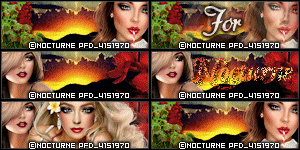
Featuring two soon to be released tubes by Ismael Rac. The matching scraps will also
be available with the tubes. These tubes are the Naughty X Girl and the Bonus tube.
They will be available soon at his store XeracX.

And the below tag has adult elements in it.

be available with the tubes. These tubes are the Naughty X Girl and the Bonus tube.
They will be available soon at his store XeracX.

And the below tag has adult elements in it.


Friday, January 18, 2013

Rainbow Socks
This tutorial was written
by Sarah Fiack on
January 18,2013
Any resemblance to another
tutorial is purely coincidental.
For this tutorial, I’m using a
tube by Amberly Berendson
You can purchase this tube at
MTA
Supplies:
Tube of Choice
Plugins:
EyeCandy4000 Gradient Glow
Open a 600x250 new image.
Open up a tube of choice too.
One with multiple colors works great
with this.
Fill with a lighter color from your
new tube.
Now select your rectangle preset
shape tool.
On your materials palette,change
both colors to white. This is a good
base color.
With your preset shape tool,
draw out a long narrow rectangle
along the length of your image.
Convert to raster.
Move the rectangle layer to the
top of the image.
Duplicate 5 more times.
Arrange the layers going down
the image. Make sure you leave a space
between each rectangle. You want to see the
underneath color.
Now hide the bottom layer for the moment.
Merge visible the rectangle layers.
Select your fill tool.
Change the stroke on the materials palette,
to a color from your tube. Fill the top rectangle
with the color.
Repeat this with the next rectangle and with a
different color from the tube.
I did the colors to reflect the socks the tube has on.
Now we're going to add noise to the layer.
Adjust - add noise
35 uniform
Monochrome checked
Once all the rectangles are filled,
apply EyeCandy 4000 Gradient Glow
Black halo 3.00
Then apply the Glow Fat 3.00
Unhide the bottom layer.
Paste your main tube as a new layer as top layer.
Position to the side of the tag.
Mirror.
On your layers palette, change
the blend mode to hard light.
Paste your tube again & position
as originally before the mirror step.
Add a drop shadow to both the rectangles
and the 2nd tube layer.
2,2,50,5 Black
Add a new raster layer on the top layer.
Fill with white or color of choice.
Click this layer with your magic wand.
Selections contrast by 3.
Press delete on your keyboard.
Select none.
Add artist copyright & name.
Save as wanted.
Thanks for trying my tutorial.
Wednesday, January 9, 2013
Am feeling a lot of darkness tonight & angry towards myself..lashing out at myself
in ways I shouldn't - esp when angry. I seem to have no control.
Usually its a minor battle within myself..but its a full war tonight. It seems the voice or voices in my head are a lot worse..
I did the below creation tonight..trying to put words to what I am feeling..it doesn't even come close to the emotions.
The 1st one is an older one I also did. I'm beginning to wonder if I am crazy...and how far this will go. The 2nd photo is from tonight


in ways I shouldn't - esp when angry. I seem to have no control.
Usually its a minor battle within myself..but its a full war tonight. It seems the voice or voices in my head are a lot worse..
I did the below creation tonight..trying to put words to what I am feeling..it doesn't even come close to the emotions.
The 1st one is an older one I also did. I'm beginning to wonder if I am crazy...and how far this will go. The 2nd photo is from tonight


Friday, January 4, 2013

PSP VICE
This tutorial was written
by Sarah Fiack on
January 4,2013
Any resemblance to another
tutorial is purely coincidental.
For this tutorial, I’m using a tube
by Dirk Richter. You can purchase it
at CDO
Supplies
Tube of choice
Scrap of choice
I am using a PTU scrap called Geek Like Me.
By Wicked Princess Scraps
Blog
Vix Mask 127
Blog
Open a 600x600 new image.
Open a tube of choice along
with your scrap supplies.
Open a computer element.
Paste as a new layer on your
600 image.
Select your font tool. Choose a font
to look like it is on a computer.
Font color white.
Type out MY PSP VICE or a saying
of choice. You want the text to appear
to be on the screen.
Copy & paste your tube as a new layer.
Position on the computer. Since I am using
a laying down tube, I have it so she is laying
on the laptop.
Open a power cord element.
Resize 50%.
Position so part of it is hidden
underneath your main tube. You want
part of the cord visible on the computer.
Open a round circle frame.
Paste on the bottom layer underneath
the laptop element. Resize if needed.
I didn't need to resize mine but it can vary.
Open an Ipod element. Resize 50 & 70%.
Position as wanted on or by the computer.
Open a crayon element. Resize 25%.
Rotate free rotate left 45.
Position by the Ipod element.
Open a cupcake element.
Resize 50%.
Position behind the Ipod & crayon layers.
Cupcakes are my snack of choice but you can
change it for yours.
Open a coffee cup element.
Resize 50% twice.
Position by the computer on the tag.
After all we all need a drink while tagging.
Paste a paper of choice as a new layer on
the bottom layer of the tag.
Apply Vix Mask 127.
Merge group.
Duplicate the mask layer once.
On the bottom mask layer,
Adjust Blur -Gauassian 6.00
Merge layers visible.
Crop to desired size.
Add artist copyright & name.
Save as png.
Thanks for trying my tutorial.
Saturday, December 8, 2012

Reindeer Republic
This tutorial was written
by Sarah Fiack on
December 8 ,2012
Any resemblance to another
tutorial is purely coincidental.
I am using a tube by Lollipop Labs
which is available at
PSPTUBESTOP
No plugins needed but does use
Animation Shop.
Open a 600x250 new image.
Open up your tube of choice.
Fill your new image with a color
of choice from your tube.
Now select your rectangle preset
shape tool.
On your Materials palette,
select the colors to both be
the same color - I used red
for mine.
Now draw out a thin rectangle that
goes across your tag. Convert this
layer to raster. Duplicate this layer 6 times
for a total of 7 layers.
Position in cascading rows along your tag.
Be sure to allow some of your background
layer to peek through between the rows.
Once all the rows are positioned,
choose a different Stroke color on your
materials palette. Fill every other rectangle
row with this color. On my tag I used
white for this part.
Okay back to the Materials palette.
This time choose the same color for
Stroke as the Background. Choose a
smiliar but lighter color for Fill.
Draw out a square on the
left hand side of your tag.
Make sure your width is set at 8.00
Convert to raster.
Resize your tube 80% if needed.
Click inside the square with your
magic wand tool.
Paste your tube as a new layer.
Position as wanted inside the square.
Selections invert & press delete.
Select none.
Add a drop shadow to the tube layer.
2,2,50,5 Black
Back to the rectangle rows layer.
Click on the red rows ( or color of choice )
Hold shift button down while selecting to
keep all the previous rows selected.
Adjust add noise Uniform 75
Select none.
Select your font tool & choose a font
of choice. I used color black for my text
color. Add text of choice to the white
rectangle layers. Convert to raster.
Hide your tube layer for a second.
Merge visible the remaining layers.
Now unhide the tube layer.
Add a new top raster layer.Fill with a color
of choice from your tag. Click this layer
with your magic wand tool.
Selections modify contract by 4.
Press delete. Select none.
Add artist copyright & name to the tag.
If you don't wish to animate, you can also
save. To animate, please continue.
Animation:
Copy merged & paste into Animation shop
as a new animation.
Now back in PSP, select with your magic
wand, the nose of your tube ( or the part
which you have blinking )
Fill with a darker shade from the original
color.Select none.
Copy merged & return to AS.
Paste after current frame
Edit select all
Animation -Frame properties
Change to 20.
View animation
If happy with the speed of the animation &
everything, then save as gif.
Thanks so much for trying my tutorial!
Monday, November 26, 2012

Touched By A Brush
This tutorial was written
by Sarah Fiack on
November 26,2012
Any resemblance to another
tutorial is purely coincidental.
I am using a tube by Adam Braun
which you can purchase at
CDO
Plugins
Muras Meister Copies
Supplies:
Tube of choice
Open a 600x250 new image.
Open a tube of choice.
Fill your new image with a color from
your tube.
Copy & paste your tube as a new layer.
Position along a side of your image.
Duplicate the tube once.
X out & hide the copy layer.
Make sure the original tube layer is selected
in your layer palette.
Effects Plugins
Muras Meister Copies
Wallpaper rotate - default settings.
Adjust blur -motion blur
Angle 45
Strength 100
Effects Art Media Effects
Default settings
Effects -Texture effects
Texture Hatch Fine Color white
Size % 100 Smoothness 11
Depth 6 Angle 182
Ambience -26 Intensity 35
Shininess 15 Elevation 80
Unhide the tube copy layer.
Add a subtle drop shadow to the tube.
Choose your text tool.
Choose colors from your tag for your text.
Type out text of choice & convert to raster.
Duplicate the text layer twice.
On the original text layer, repeat the above
steps of motion blur, brush strokes &
Texture.
Next, Effects - 3D Effects,
Inner Bevel
Choose Bevel 2 Width 24
Smoothness 39 Depth 12 Ambience 23
Shininess 18 Angle 315 Intensity 40
Elevation 35
Finally apply the drop shadow that you
applied to the tube layer earlier as well.
Merge layers visible.
Add a new raster layer.
Fill with a slightly darker color from tag.
Click this layer with your magic wand tool.
Selections modify contract by 3.
Press delete button.
Select none.
Add artist copyright information.
Save as png.
Thanks for trying my tutorial!
Subscribe to:
Posts
(Atom)
Zone Award